Looply

Table of Contents

Connect Google Workspace to Looply with administrator approval

Recommended for Google Workspace: ask an administrator to trust Looply once for the organization or selected organizational units. Each mailbox owner then connects their own account with Google OAuth.

Choose the right Google connection

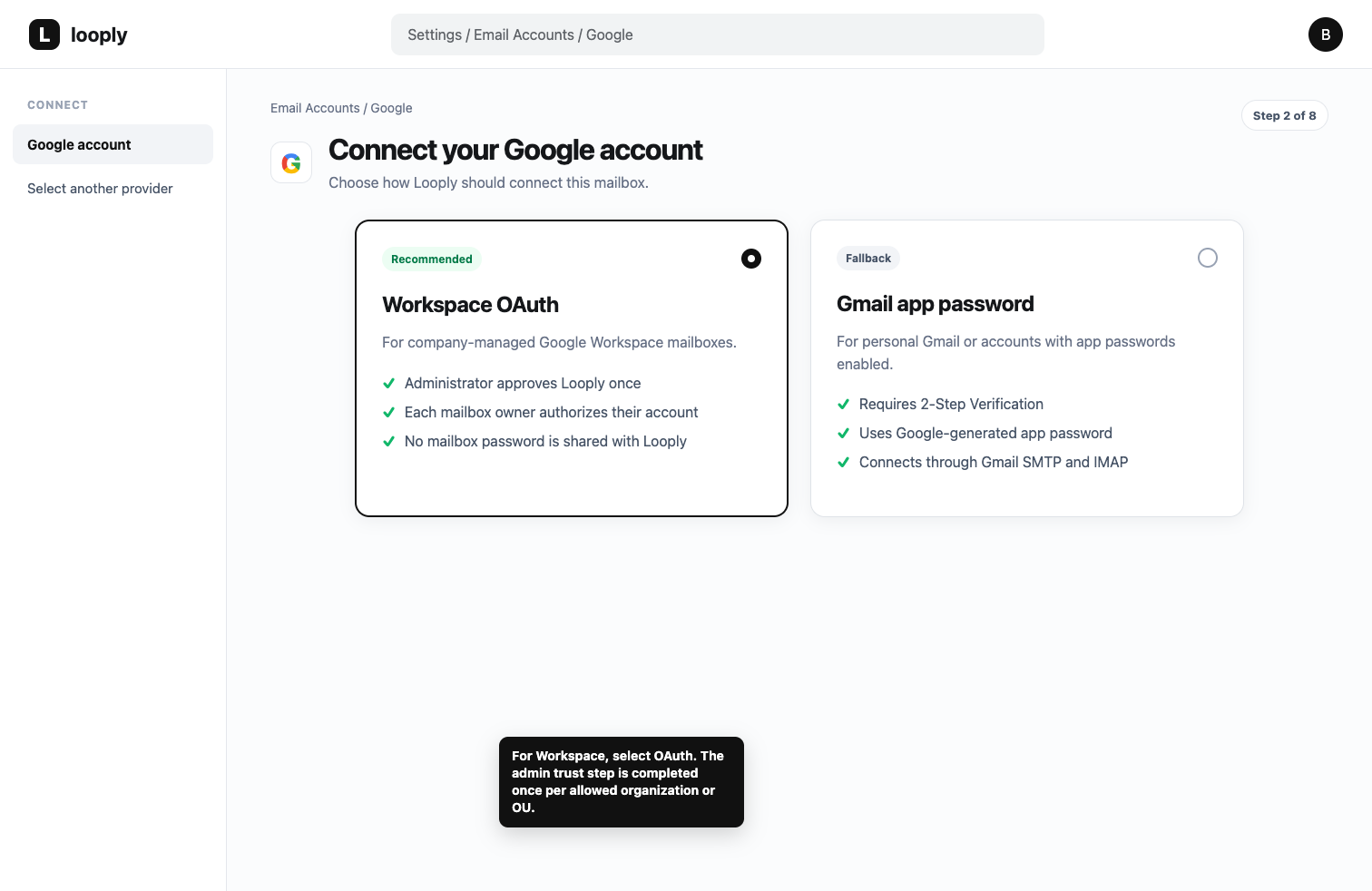
Workspace OAuth is the recommended option for company-managed Google Workspace accounts. It does not share mailbox passwords with Looply.
Gmail app password is a fallback for personal Gmail or accounts where the owner can create a Google app password. It uses Gmail SMTP and IMAP.
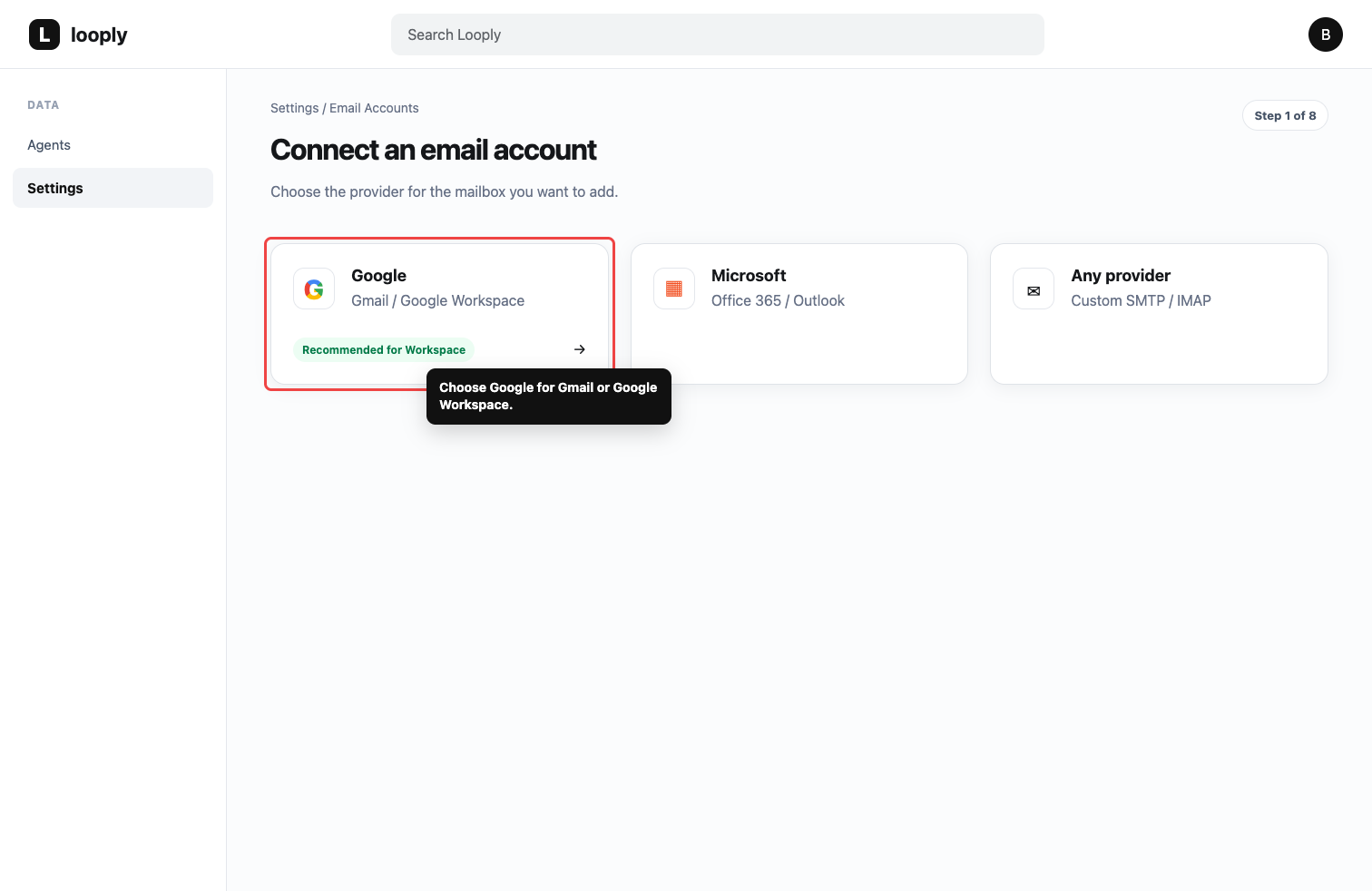
Looply Email Accounts screen with the Google provider selected
In Looply, choose Google for Gmail or Google Workspace.
Looply Google connection screen comparing Workspace OAuth and Gmail app password
For company-managed mailboxes, choose the recommended Workspace OAuth option.
Never enter your normal Google password in Looply. The app-password form accepts only a Google-generated app password.

What administrator approval does

Administrator approval allows users in the selected Google Workspace organization or organizational units to authorize Looply's shared OAuth client. It does not connect every mailbox, grant domain-wide mailbox access, or let Looply impersonate users.

After approval, each mailbox owner still selects their Google account and grants Looply access to that mailbox.


1. Open Google Admin
1.
Sign in to admin.google.com with a Google Workspace administrator account.
2.
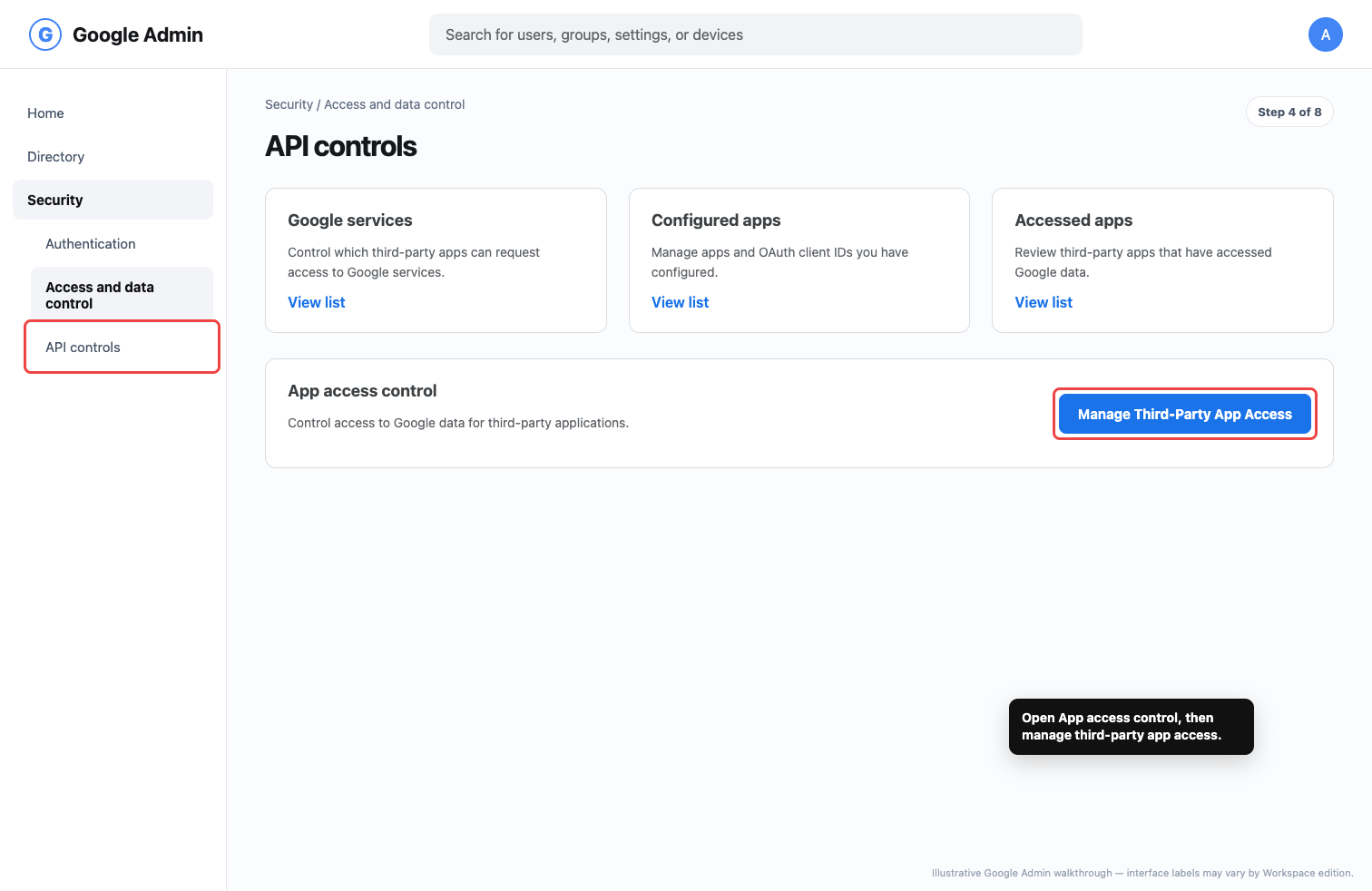
Open Security → Access and data control → API controls.
3.
Under App access control, click Manage Third-Party App Access.
Illustrative Google Admin API controls screen highlighting third-party app access
Open Security → Access and data control → API controls, then manage third-party app access.

2. Find Looply by OAuth client ID

1.
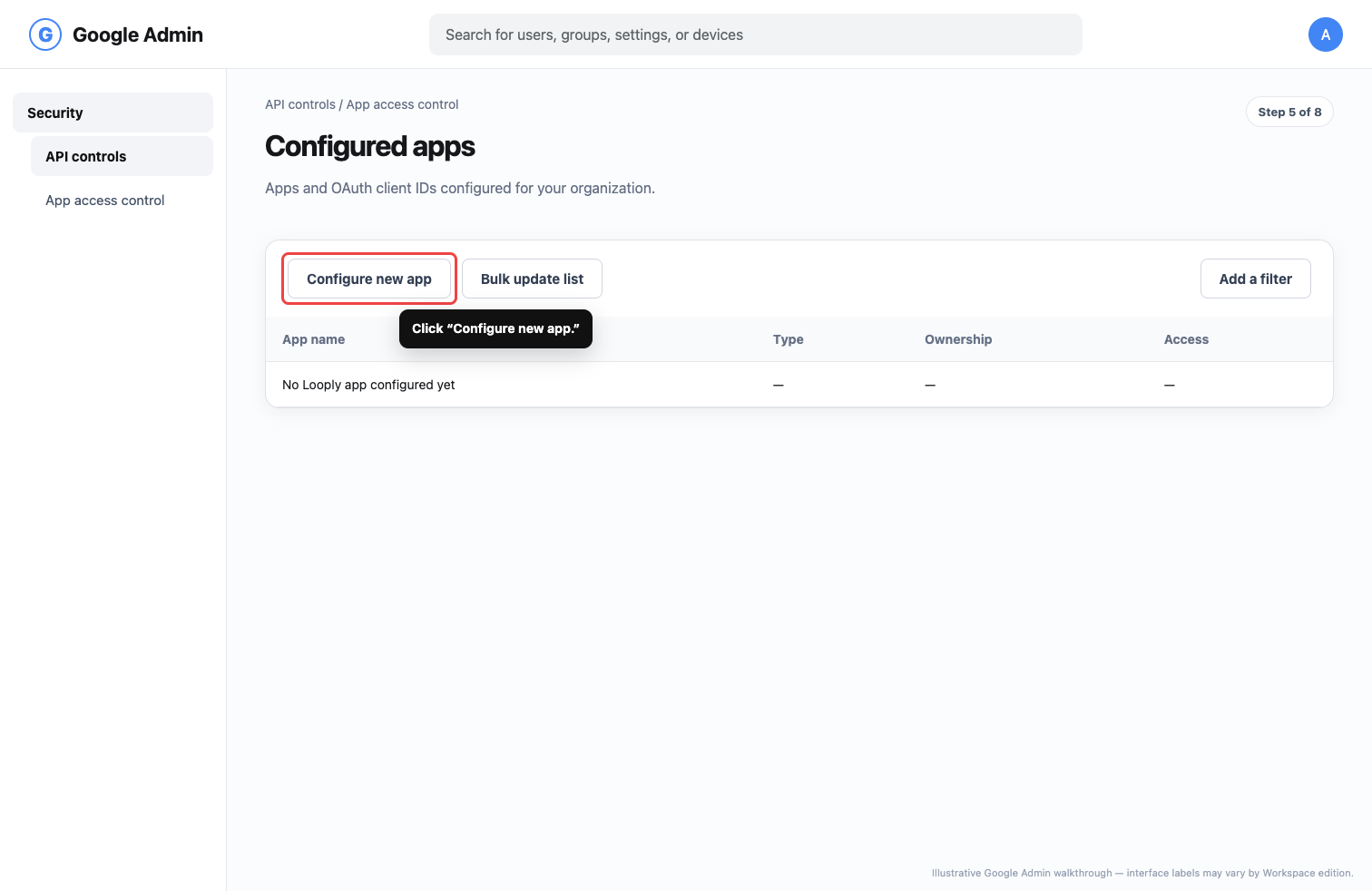
Open Configured apps, click Configure new app, and choose OAuth App Name Or Client ID.
Illustrative Google Admin configured apps screen highlighting Configure new app
From Configured apps, choose Configure new app.
1.
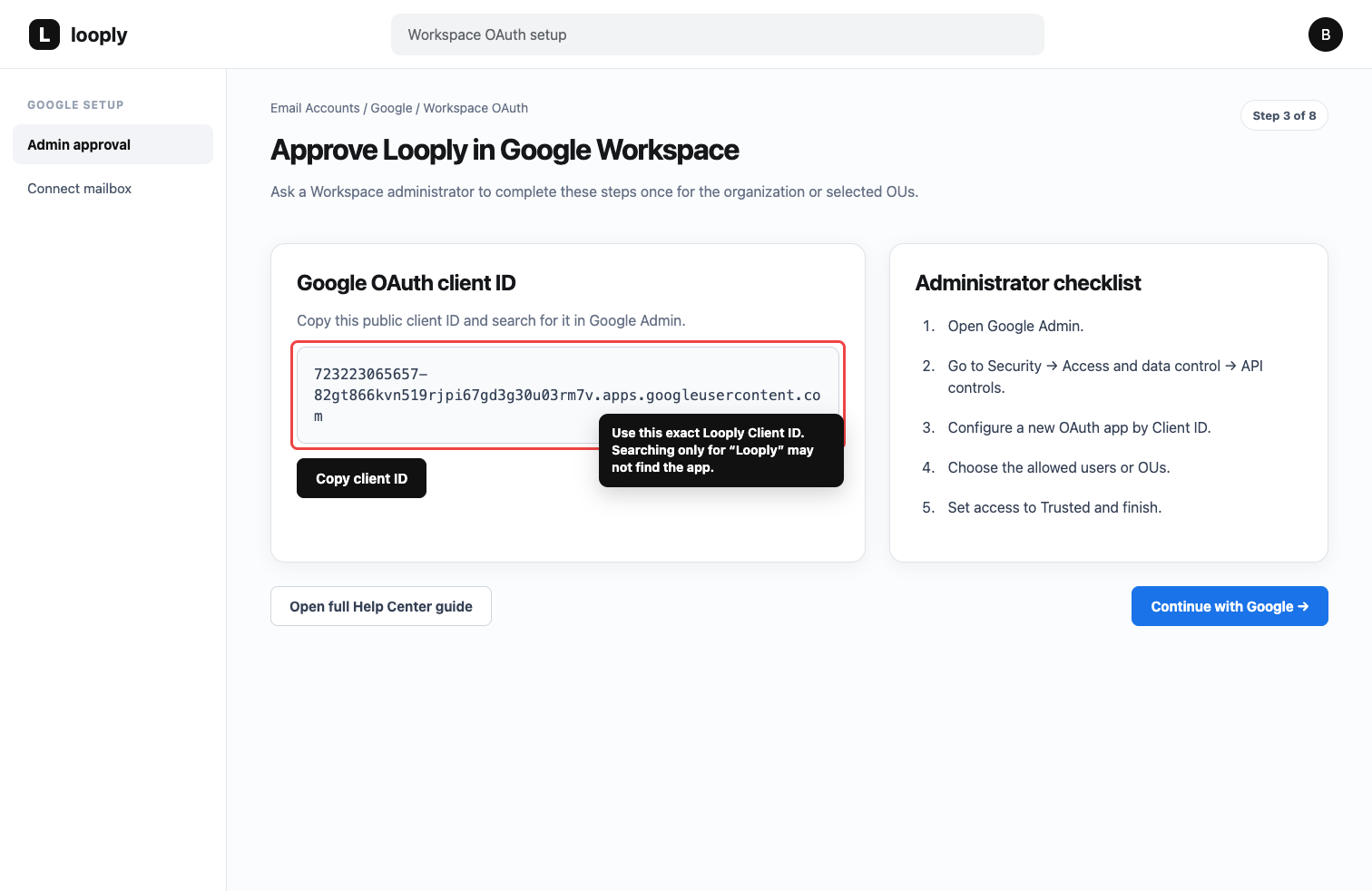
Copy Looply's public Google OAuth client ID: 723223065657-82gt866kvn519rjpi67gd3g30u03rm7v.apps.googleusercontent.com. You can also copy it from Looply's Workspace OAuth setup screen.
Looply Workspace OAuth setup screen showing the public Google OAuth client ID
Copy Looply's public OAuth client ID from the Workspace OAuth setup screen or this article.
1.
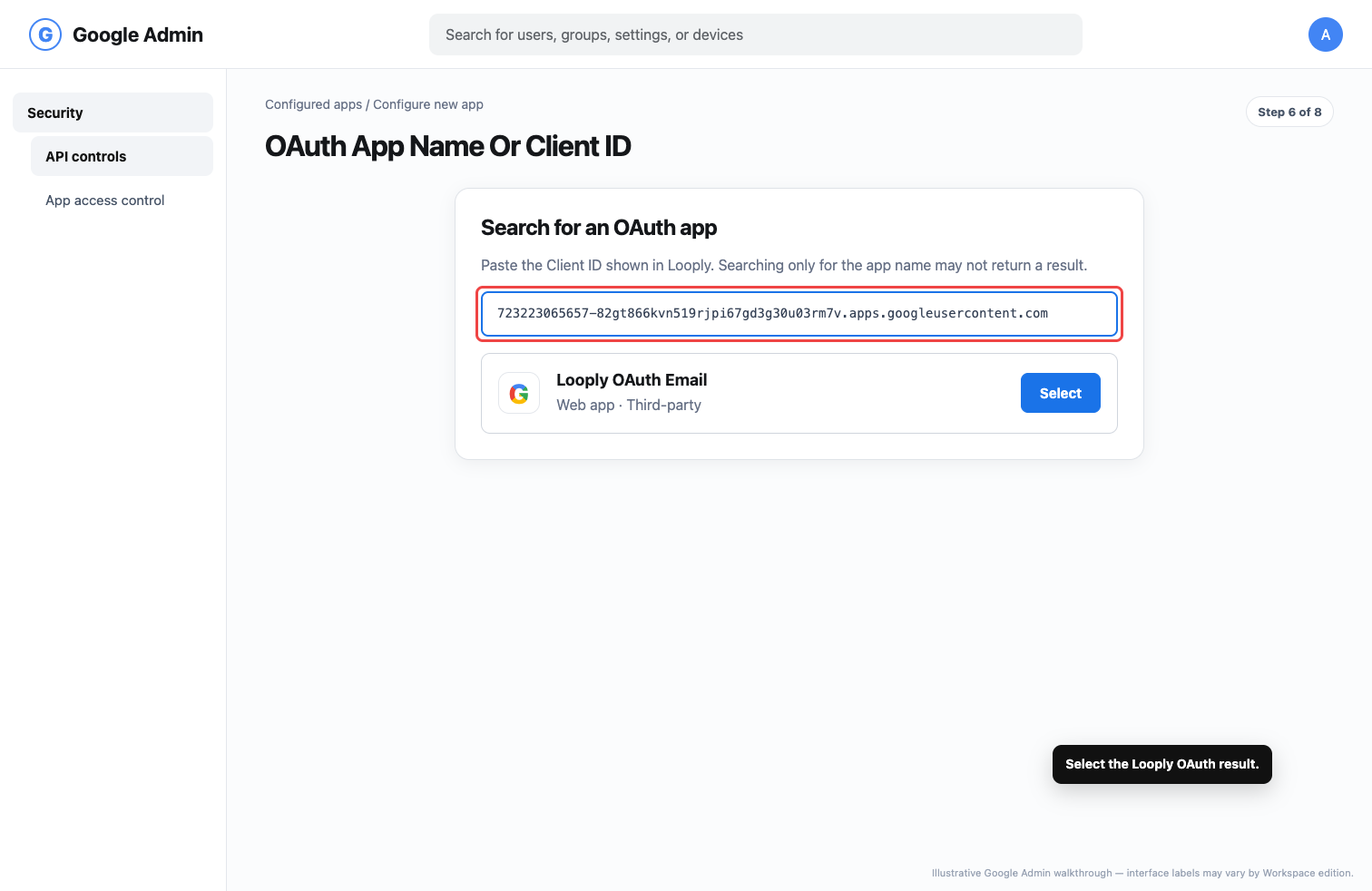
Paste the client ID into Google Admin, click Search, and select Looply.
Illustrative Google Admin OAuth app search showing the Looply client ID and app result
Paste the exact client ID, search, and select Looply OAuth Email.

3. Set the allowed users and Google data
1.
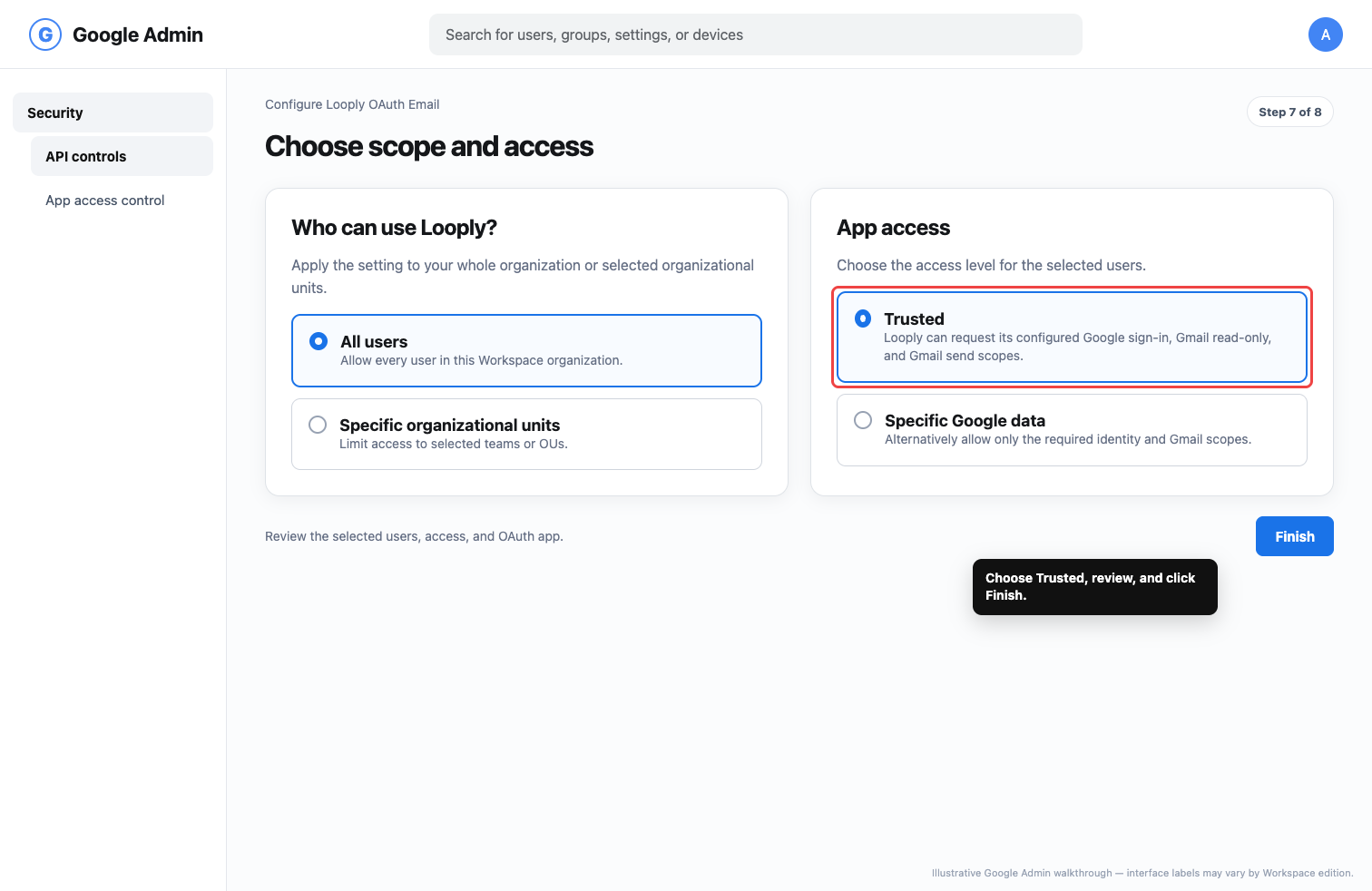
Choose the organization or organizational units whose mailboxes may connect to Looply.
2.
Choose Trusted, or choose Specific Google data and allow Google sign-in identity plus Gmail read-only and Gmail send.
3.
Review the configuration and click Finish.
Illustrative Google Admin app configuration showing users and trusted access
Choose all users or selected organizational units, set access to Trusted, and finish.
Looply does not request Google Contacts. The active Gmail OAuth flow requests only basic identity, Gmail read-only, and Gmail send.

4. Connect each mailbox in Looply

1.
In Looply, open Data Settings → Email Accounts and click Connect email.
2.
Choose Gmail / G-Suite, choose Workspace OAuth, and click Continue with Google.
3.
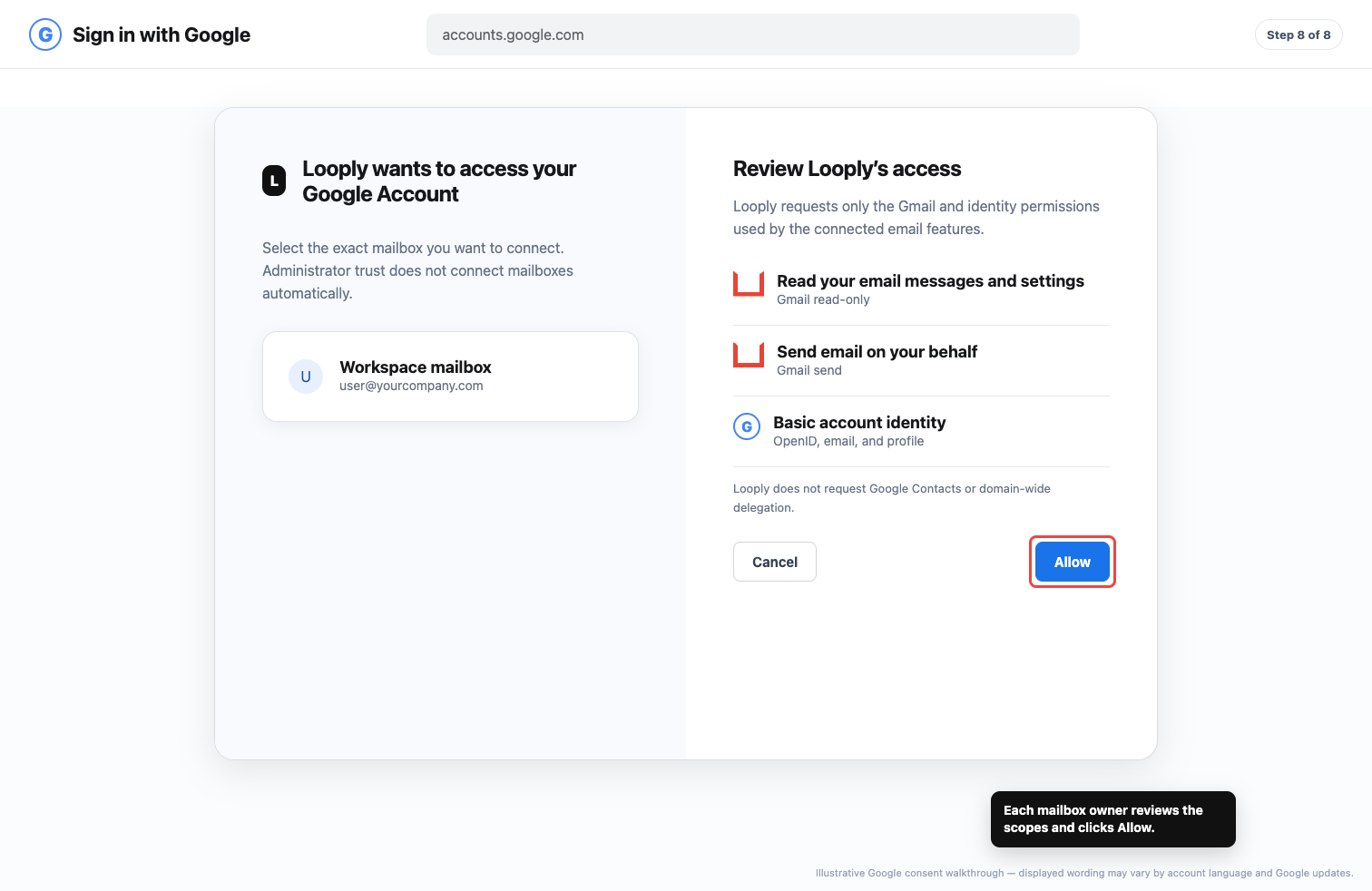
Select the exact mailbox, review Google's permission screen, and approve access.
Illustrative Google consent screen showing Looply Gmail read-only and Gmail send access
Each mailbox owner selects the exact account, reviews Looply's scopes, and clicks Allow.
1.
Repeat this mailbox-owner step for every sender that should appear in Looply.

Personal Gmail fallback: app password

1.
Turn on 2-Step Verification for the Google account.
2.
Open myaccount.google.com/apppasswords and create a new app password for Looply.
3.
In Looply, choose Gmail app password and paste the 16-character Google-generated password. Looply preconfigures smtp.gmail.com with STARTTLS on port 587 and imap.gmail.com with SSL/TLS on port 993.
Google may disable app passwords for managed accounts, security-key-only 2-Step Verification, or Advanced Protection. Use Workspace OAuth when the option is unavailable.

Troubleshooting

Access blocked or admin_policy_enforced: confirm the correct client ID is configured and the mailbox belongs to an allowed organizational unit.
Wrong Google account: restart the flow and select the exact mailbox that should send and sync in Looply.
Reconnect required: return to Data Settings → Email Accounts and reconnect the sender. Looply uses the Workspace-approved OAuth path by default.
App password rejected: create a fresh app password, remove spaces when pasting, and verify that IMAP access is allowed for the account.

Security and campaign use

Looply encrypts custom SMTP/IMAP credentials before storage. Gmail OAuth tokens remain server-side. Google Workspace campaign delivery is allowed only after Looply records the required recipient-consent attestation for the exact current recipient set.

Administrators and mailbox owners can revoke access from Google. Disconnecting the sender in Looply prevents later synchronization and sending.

Made with Looply