

SMTP settings for Microsoft accounts
Use the configuration checklist below to verify the Microsoft account and SMTP settings before sending.
Use this guide before connecting a Microsoft Office 365 / Outlook sender in Looply when SMTP access still needs to be enabled.
Looply uses IMAP to sync replies and Authenticated SMTP to send sequence emails from the mailbox. Both need to be available before the sender can be verified for campaign delivery.
For Outlook accounts purchased directly from Microsoft
If the mailbox was purchased directly from Microsoft, enable the required email apps from Microsoft Admin Center.
1.
Log in to Microsoft Admin Center.
2.
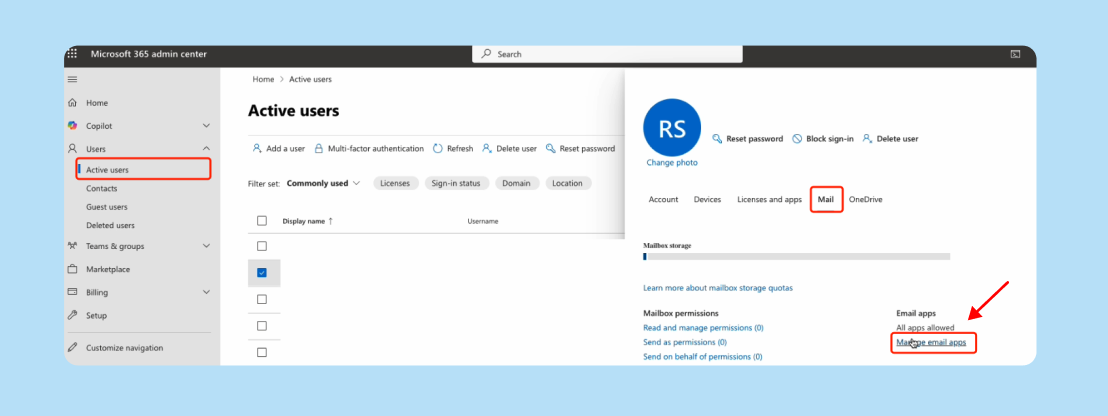
Go to Users → Active users.
3.
Select the mailbox user you want to connect to Looply.
4.
Open the Mail tab in the user flyout.
5.
In Email apps, select Manage email apps.
1.
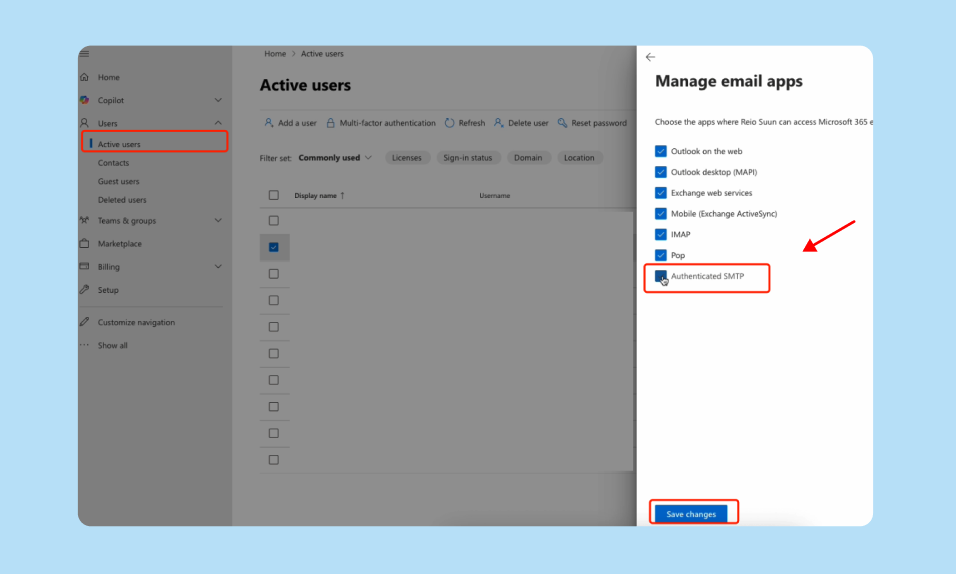
Enable IMAP and Authenticated SMTP.
1.
Save changes.
2.
Wait up to one hour, then connect or reconnect the Outlook sender in Looply.
For Outlook accounts purchased from GoDaddy
If the Microsoft 365 mailbox was purchased through GoDaddy, SMTP Authentication is managed from GoDaddy instead of the regular Microsoft user settings.
1.
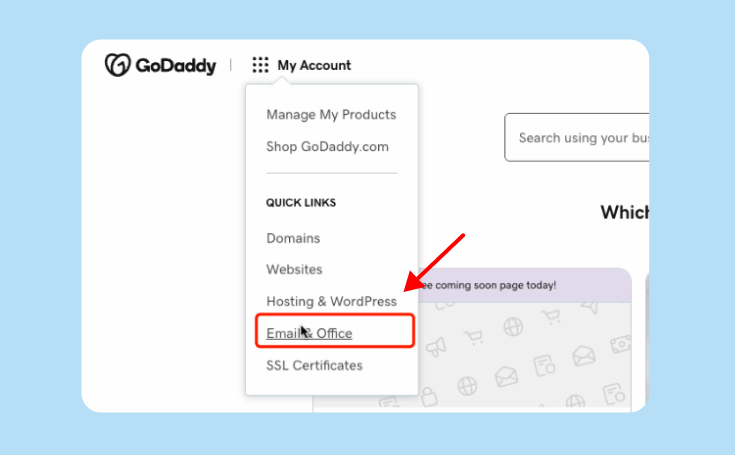
Log in to your GoDaddy account or Email & Office Dashboard.
2.
Open My Products.
3.
Find the Email and Office section.
1.
Select Manage all, then find the Microsoft 365 user you want to connect.
2.
Select Manage next to that user.

1.
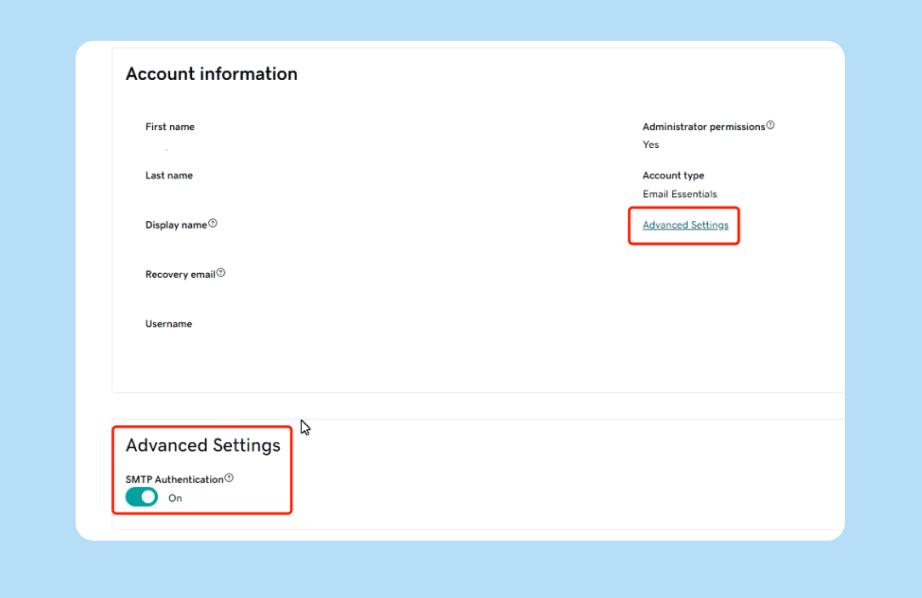
Scroll to Account information and open Advanced Settings.
2.
Turn on SMTP Authentication.
1.
Wait up to one hour, then connect or reconnect the account in Looply.
Connect or reconnect the sender in Looply
After IMAP and SMTP access are enabled, finish the setup from Looply.
1.
Go to Data Settings → Email Accounts.
2.
Click Connect email.
3.
Choose Microsoft Office 365 / Outlook.
4.
Confirm SMTP has been enabled when Looply asks.
5.
Approve the Microsoft connection flow.
6.
Wait while Looply verifies IMAP and SMTP access for the sender.
7.
Use the sender in campaigns once Looply shows the email account as connected.
Important notes
•
Admin permissions may be required to enable IMAP, Authenticated SMTP, or SMTP Authentication for a Microsoft 365 mailbox.
•
Microsoft tenant-level settings can still block SMTP AUTH even when the mailbox setting looks enabled. Ask your Microsoft admin to review the tenant setting if verification still fails.
•
Changes can take up to one hour to propagate before Looply can verify the sender.
•
Looply needs IMAP to sync replies and SMTP to send sequence emails from the Outlook sender.
•
If Looply shows an Outlook IMAP or SMTP permission error after the wait, reconnect the mailbox from Email Accounts or contact support with a screenshot of the sender status.
Use the Microsoft Office 365 / Outlook connection flow in Looply. Do not use raw browser sessions or unsupported authentication workarounds to connect an Outlook sender.